How to use
From install to your first transfer
Everything you need, in the order you need it. Most people are sending files within a minute.
1. Install
Get the app for your computer and, if you want Wi-Fi transfers with a phone, for your phone. Go to the download page and pick your system.
- Mac: open the .dmg and drag ZeroMDroid to Applications. The first time, if macOS says it cannot verify the app, open System Settings › Privacy & Security and choose Open Anyway (on older macOS: right-click the app, choose Open, then Open again).
- Windows: run the installer. If SmartScreen warns, choose More info › Run anyway.
- Linux: an AppImage runs after
chmod +x; on Debian or Ubuntu usesudo apt install ./ZeroMDroid-….deb. - Android: open the .apk on the phone and allow installing from your browser or file manager when it asks.
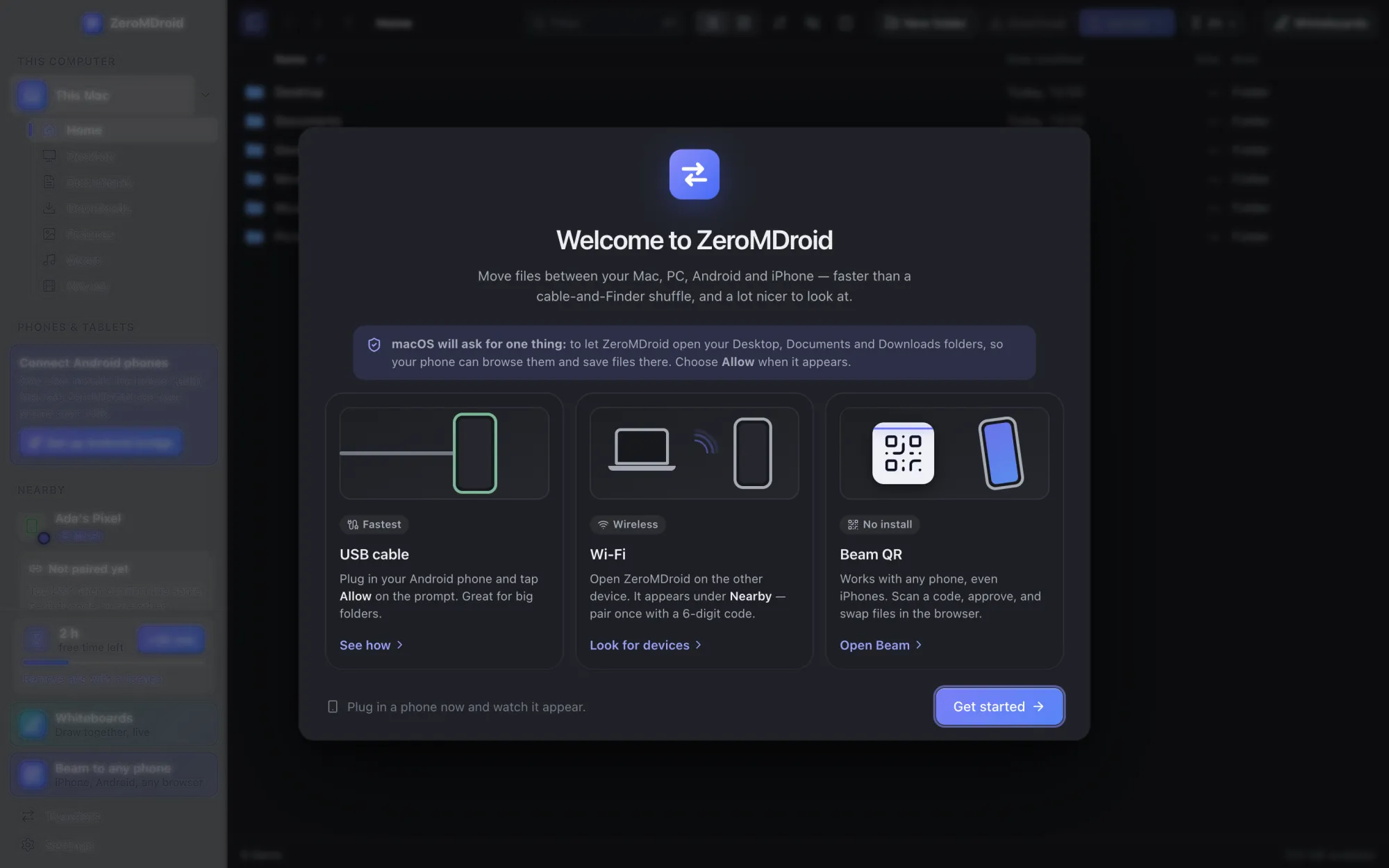
On first start a short welcome explains what ZeroMDroid will ask for (access to your folders, and the local network on a Mac) and why. 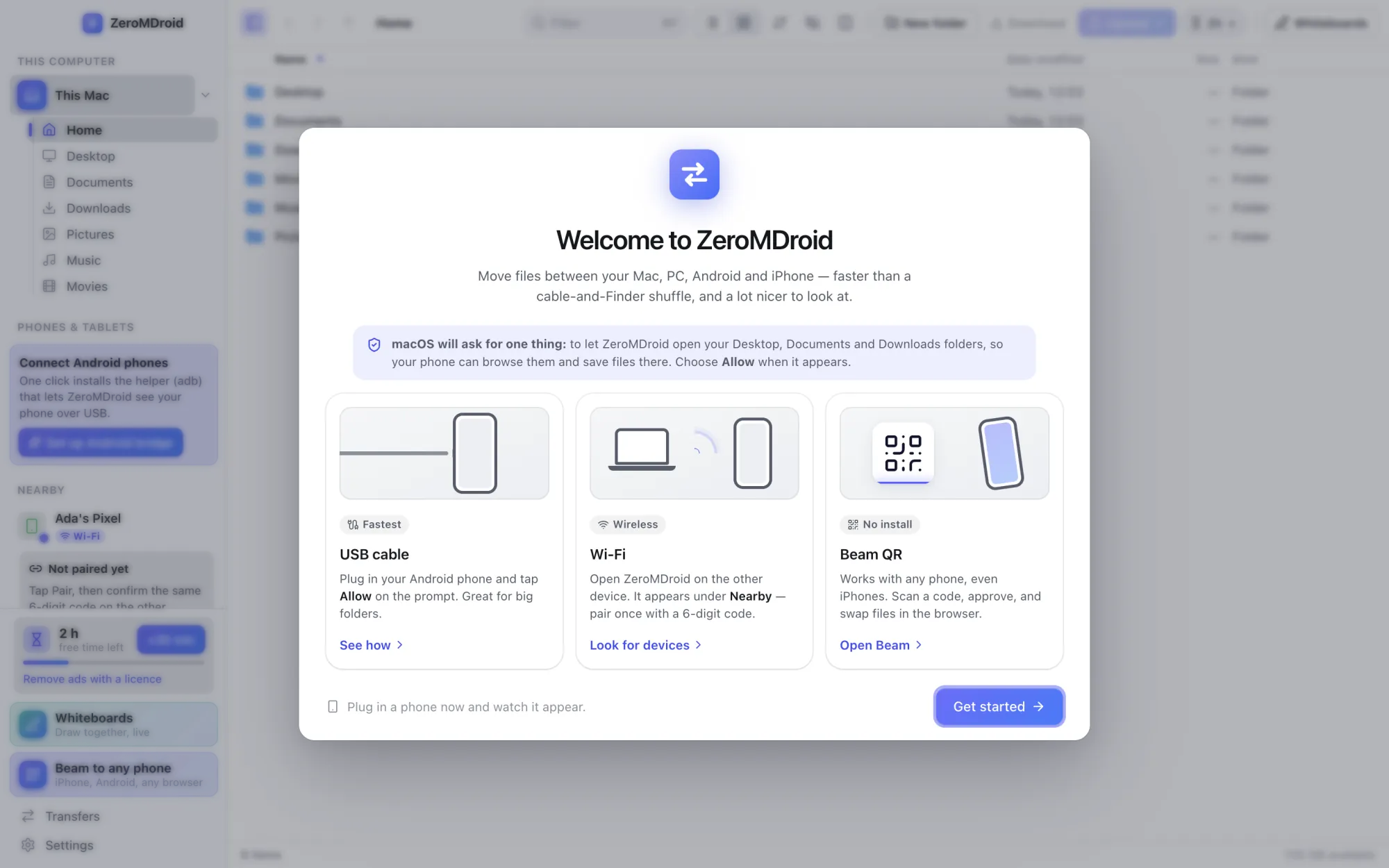
2. Pair your devices
Pairing is done once for each pair of devices. Put both on the same Wi-Fi, open ZeroMDroid on both, and:
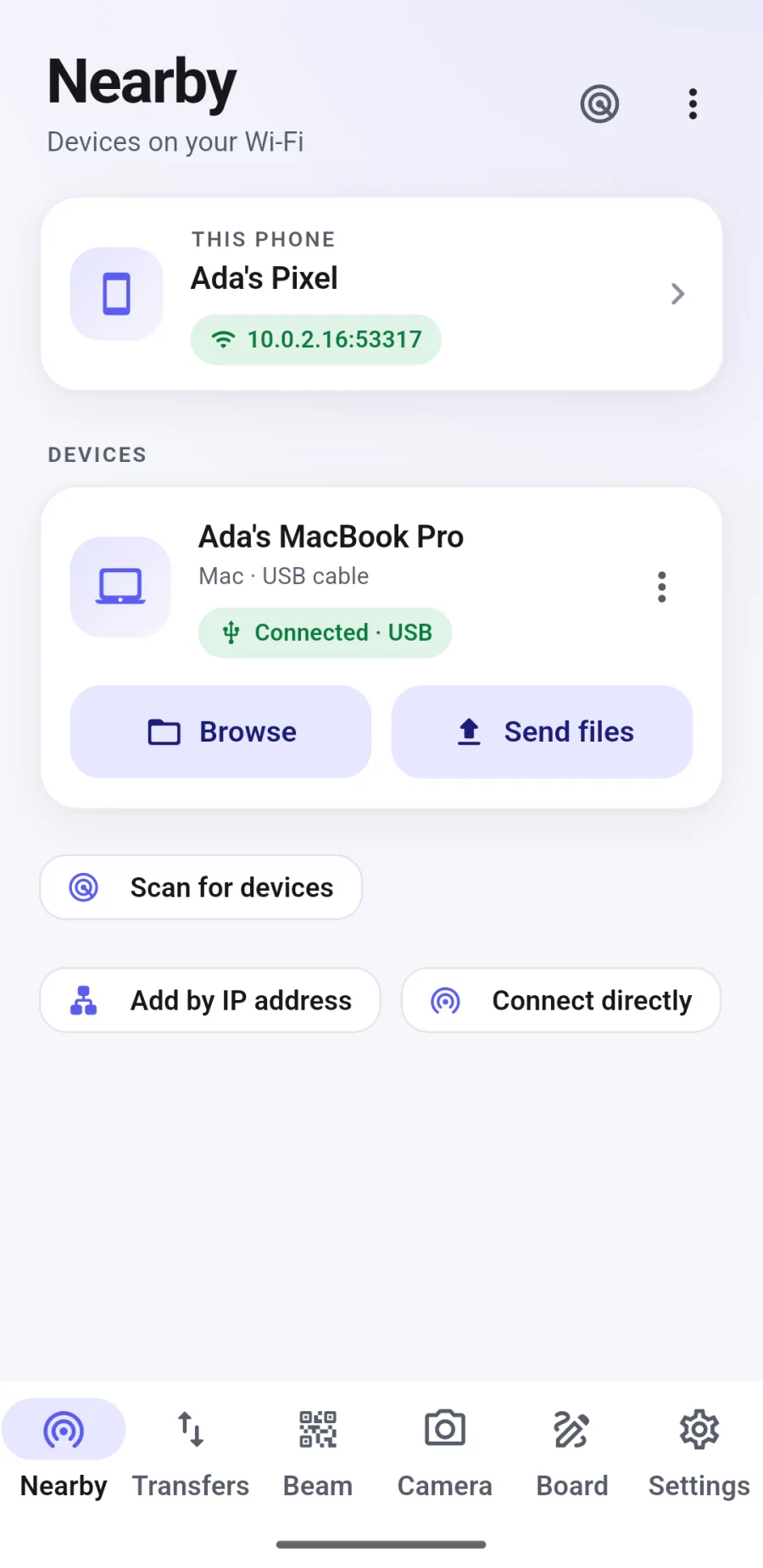
- On your computer, look under Nearby in the sidebar. The other device appears there (if it does not, press Scan for nearby devices).
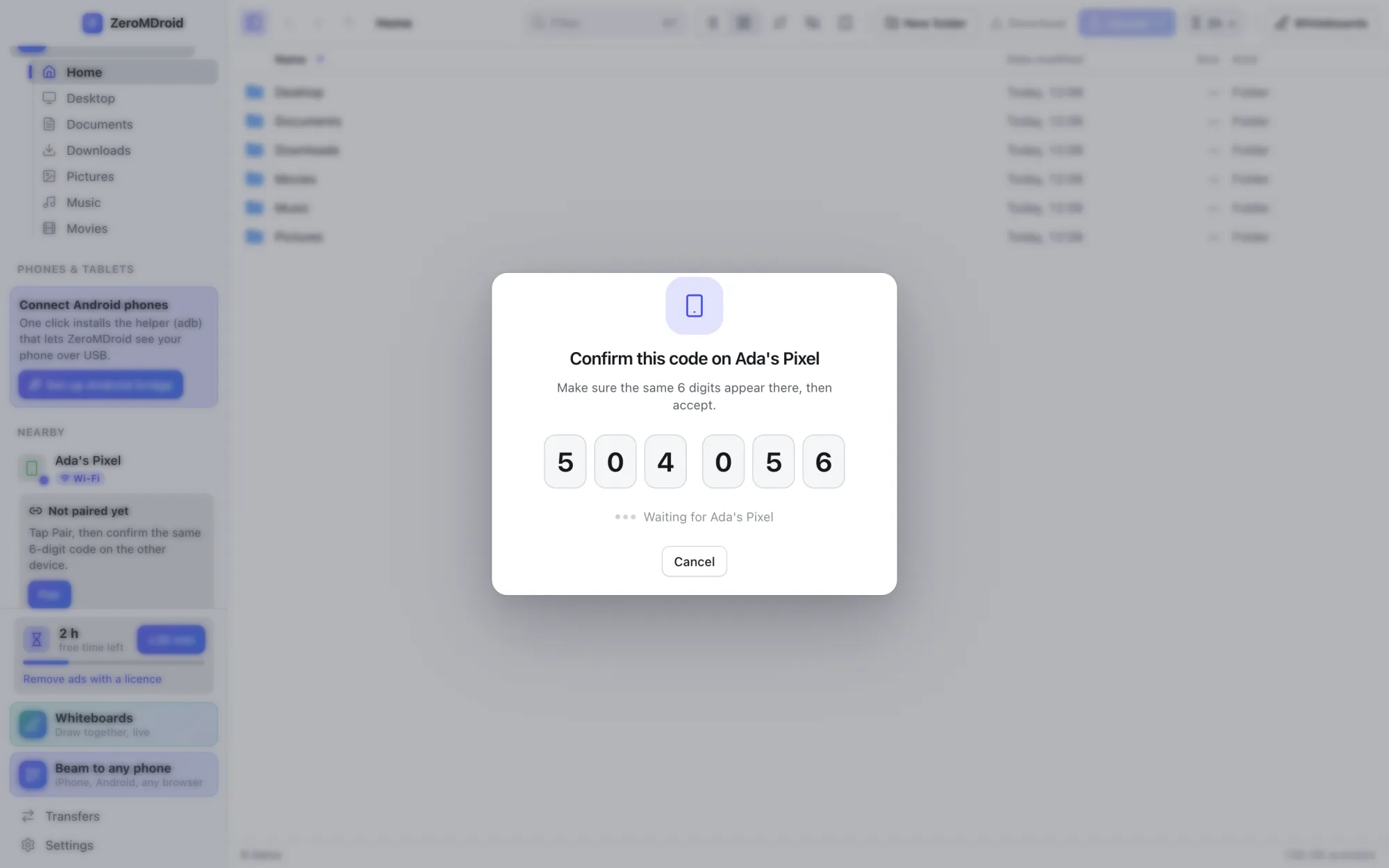
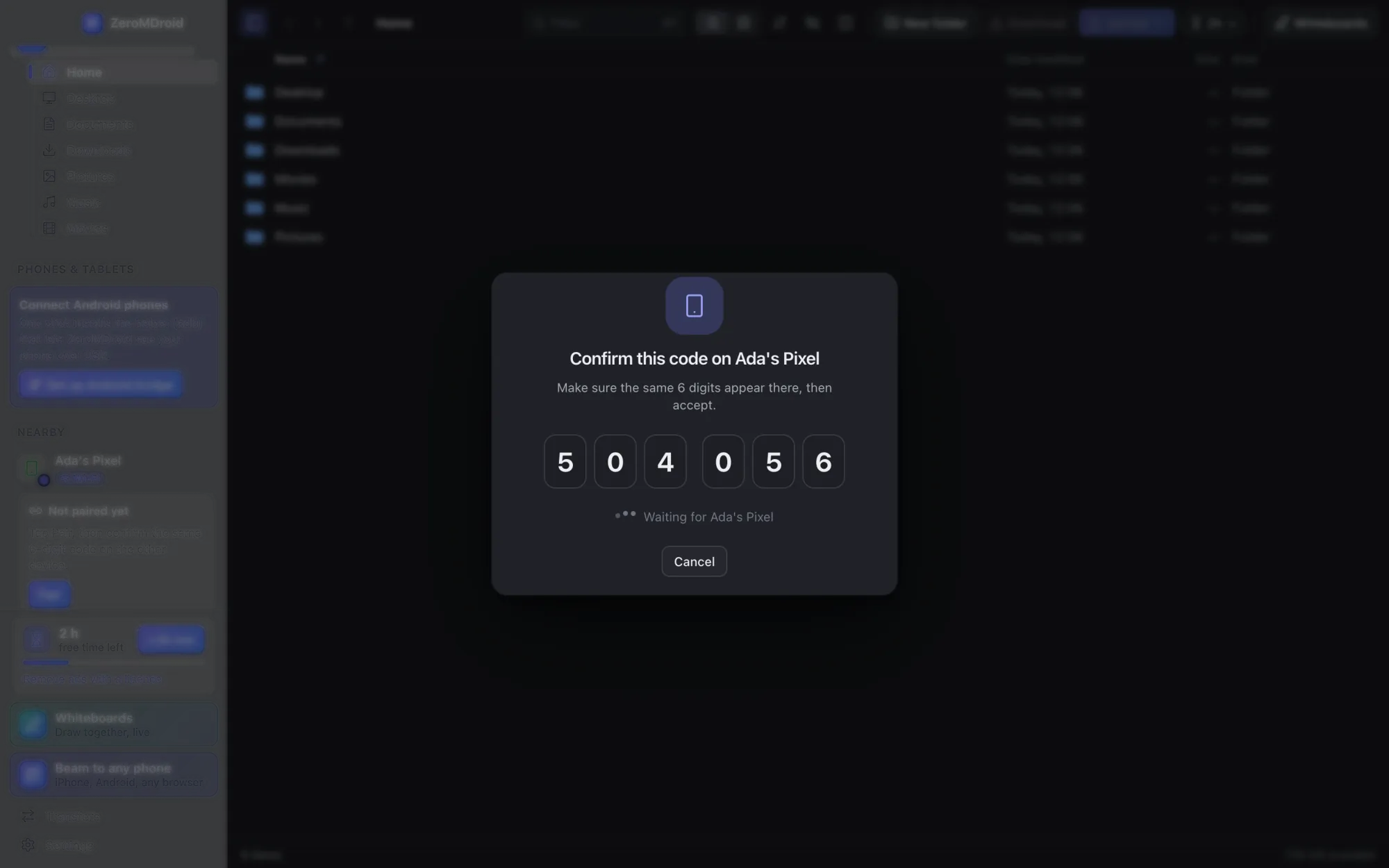
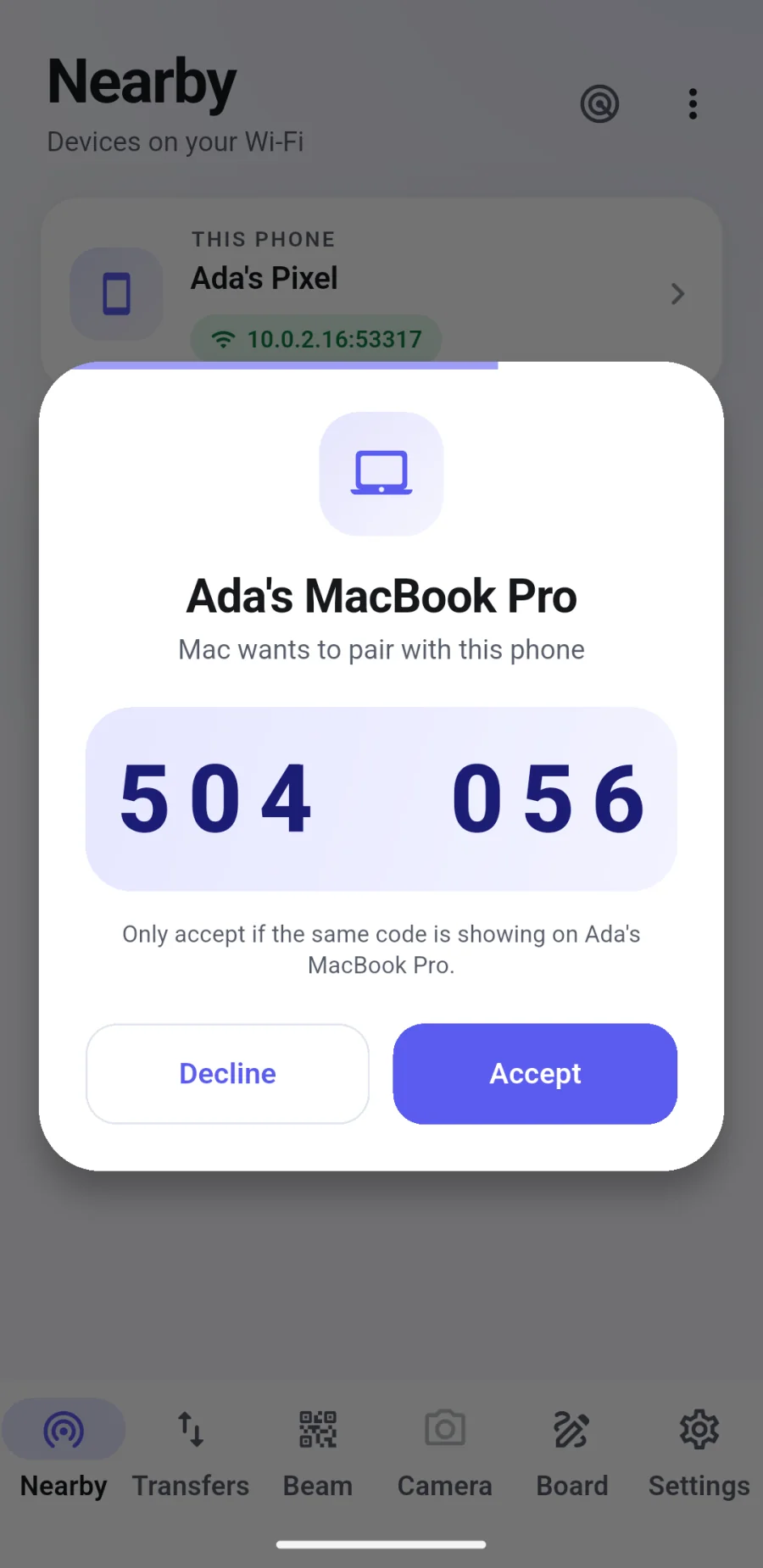
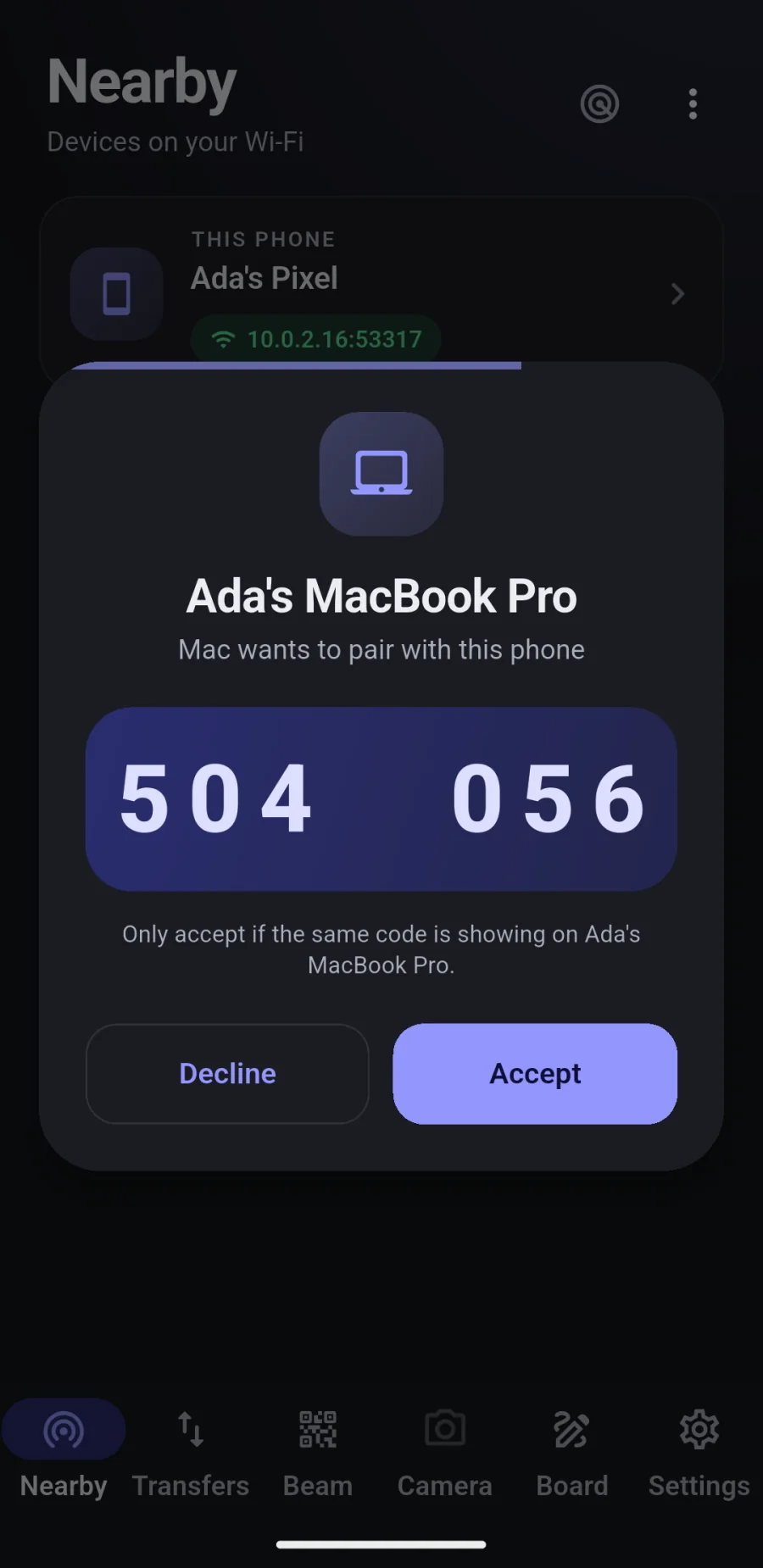
- Click Pair. A 6-digit code appears.
- The other device shows the same code and asks you to accept. Check they match, then accept.
That is it: the devices now trust each other, with certificates pinned so nobody can pose as one of them. You can pair as many devices as you like and forget any of them again.
3. Send and receive
- From your computer: drag files or folders onto a device in the sidebar, or open the device, choose files and press Send (the arrow at the top).
- From the phone: open the Nearby tab, choose the computer, and pick the files to send (the Transfers tab shows how they are doing).
- Receiving: files from another device land in your Downloads › ZeroMDroid folder (change it in Settings). On Android they go to Download/ZeroMDroid.
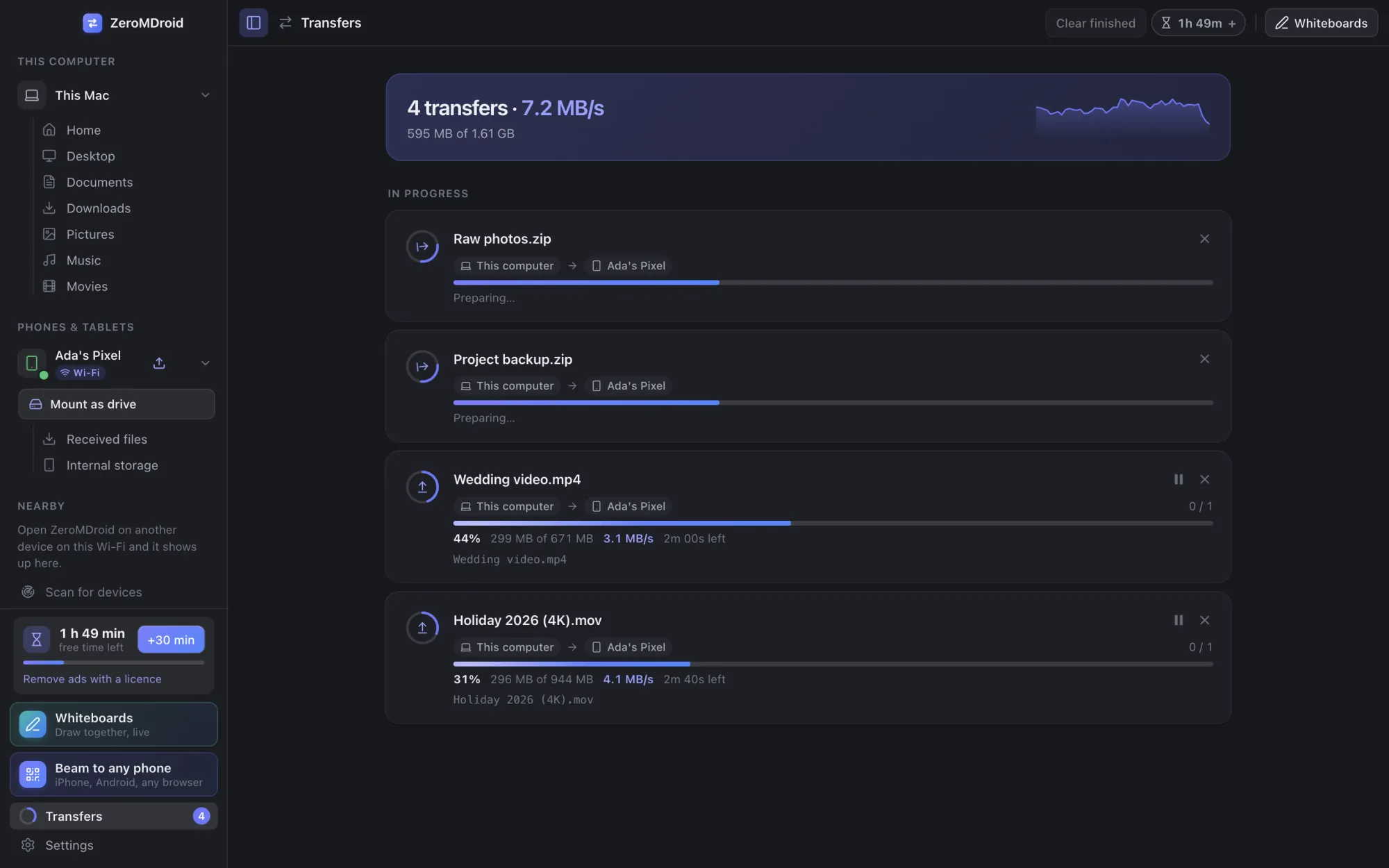
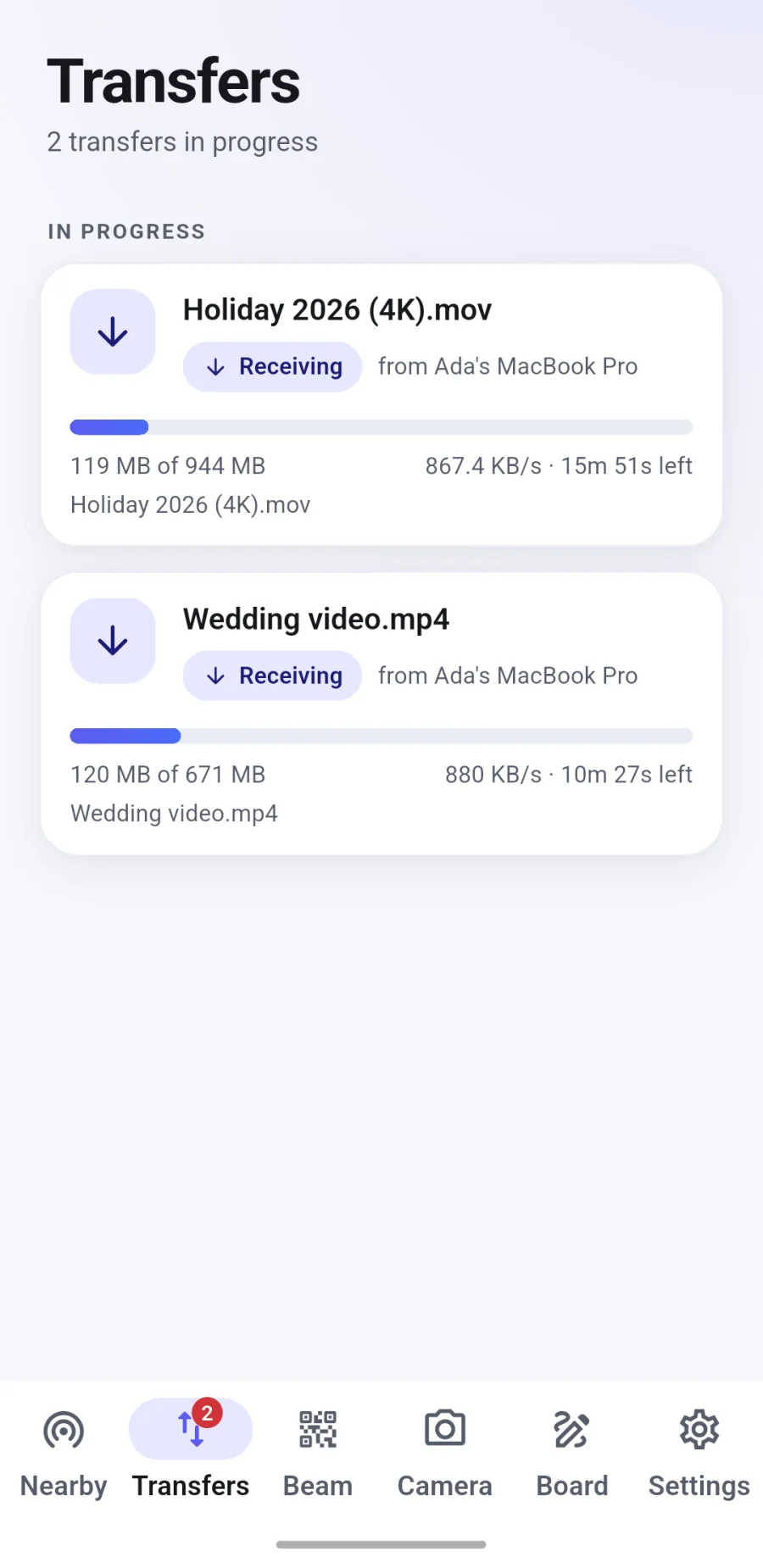
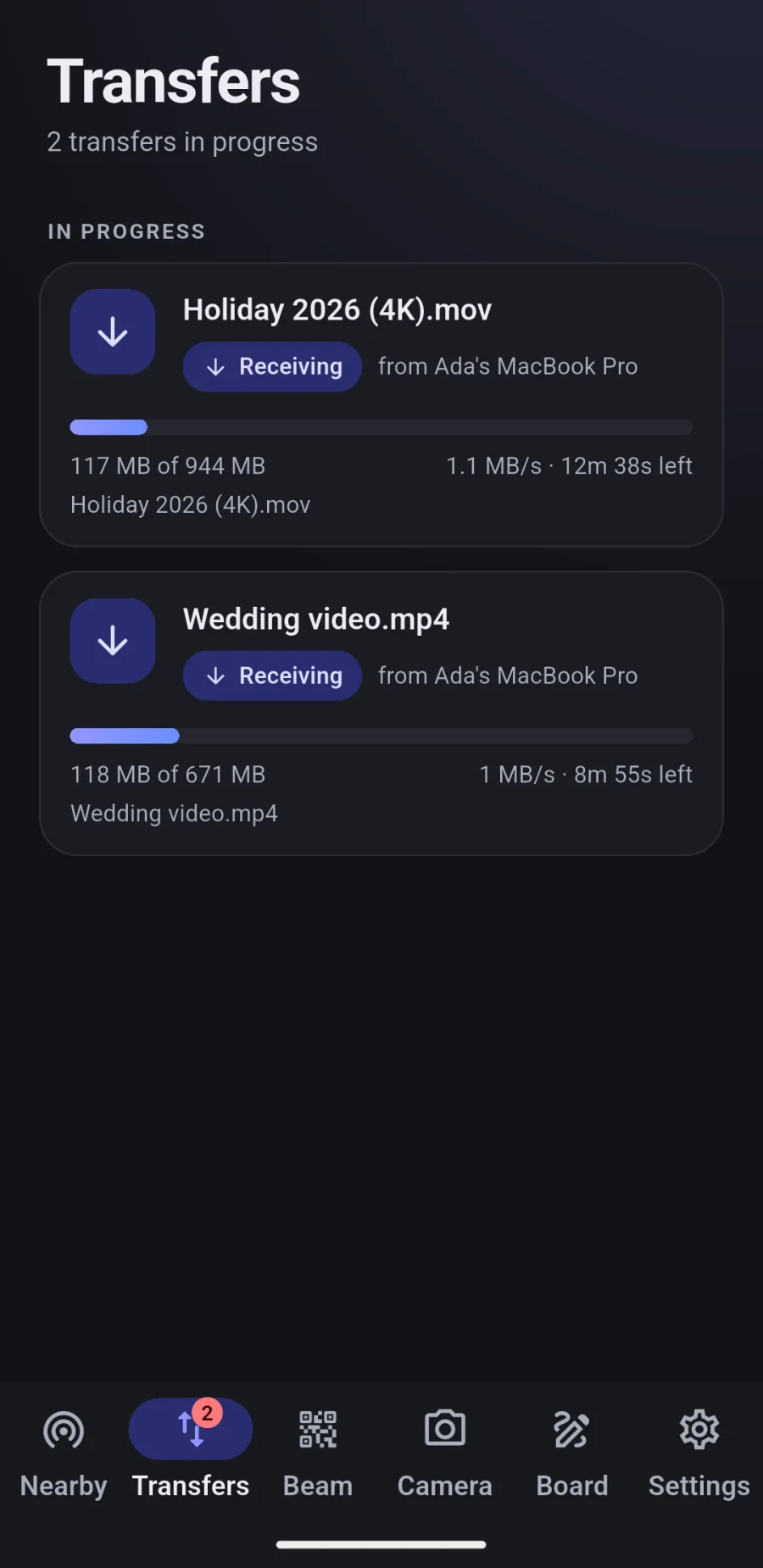
The Transfers list shows speed and time left for each file. You can pause, resume or cancel. 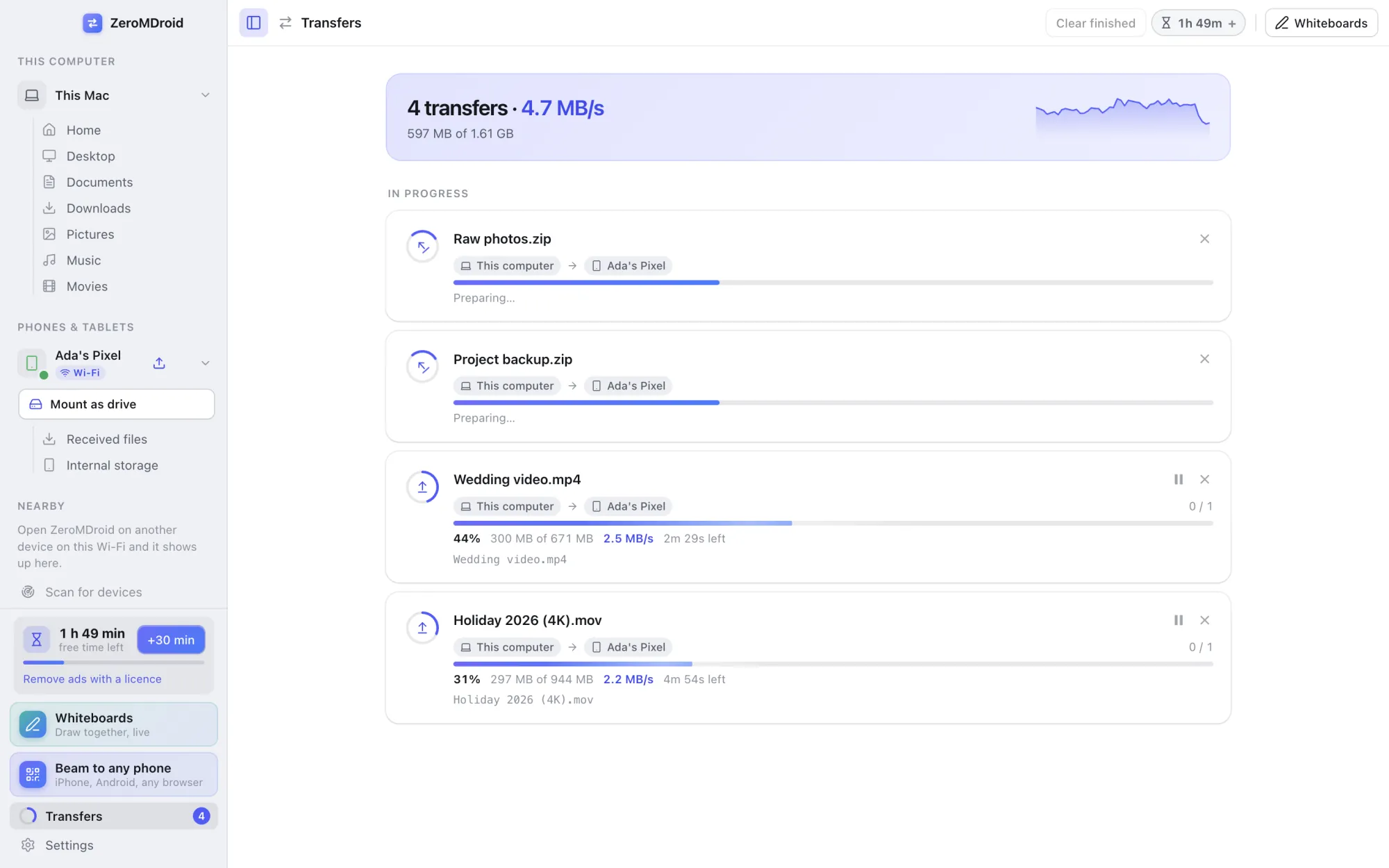
4. Browse a device
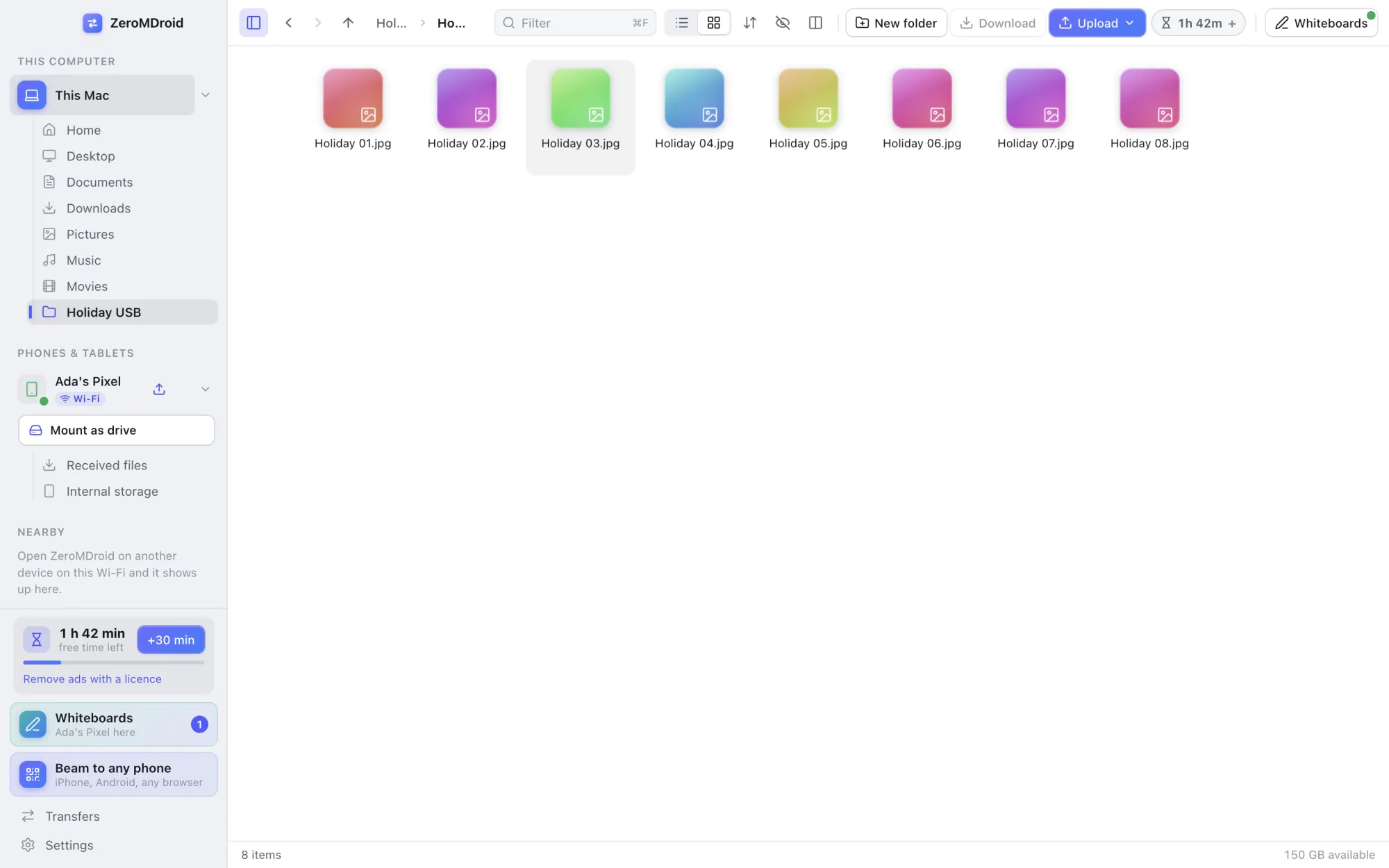
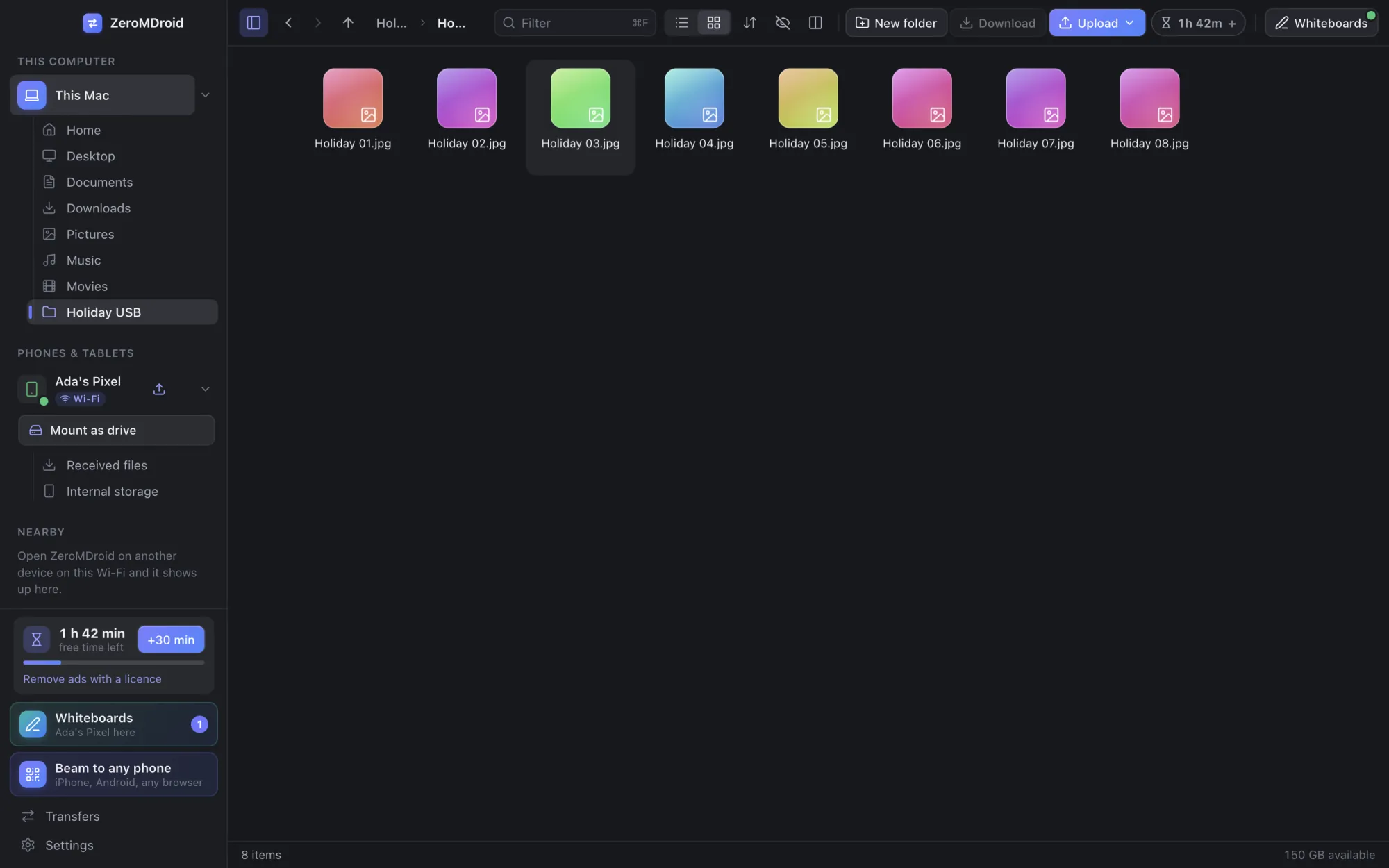
Click a device, then a folder, to open it in the main window. Switch between list and grid, sort, filter, show hidden files, and turn on the second pane to see two devices side by side and drag between them. Press ⌘K (Mac) or Ctrl+K for the command palette.
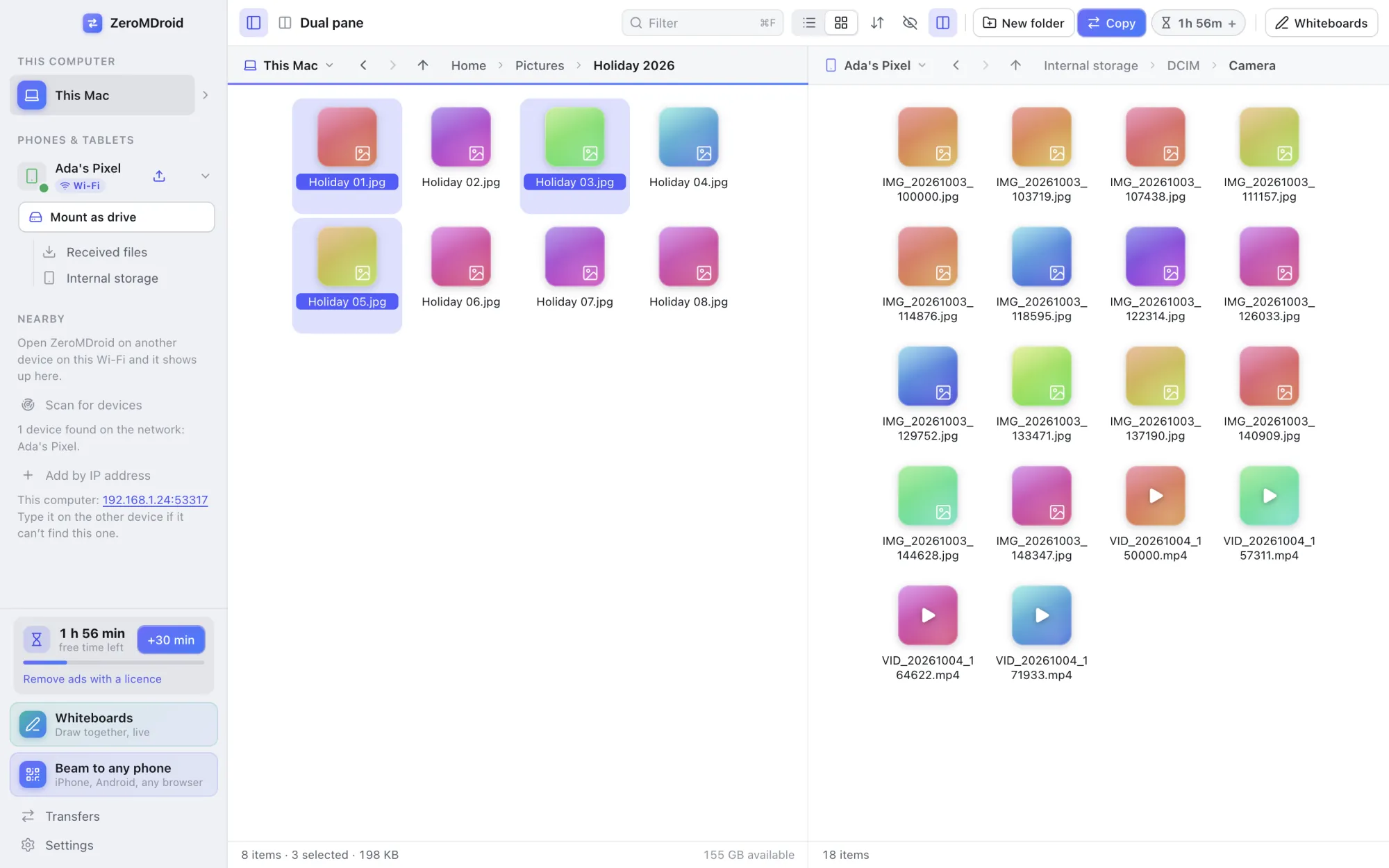
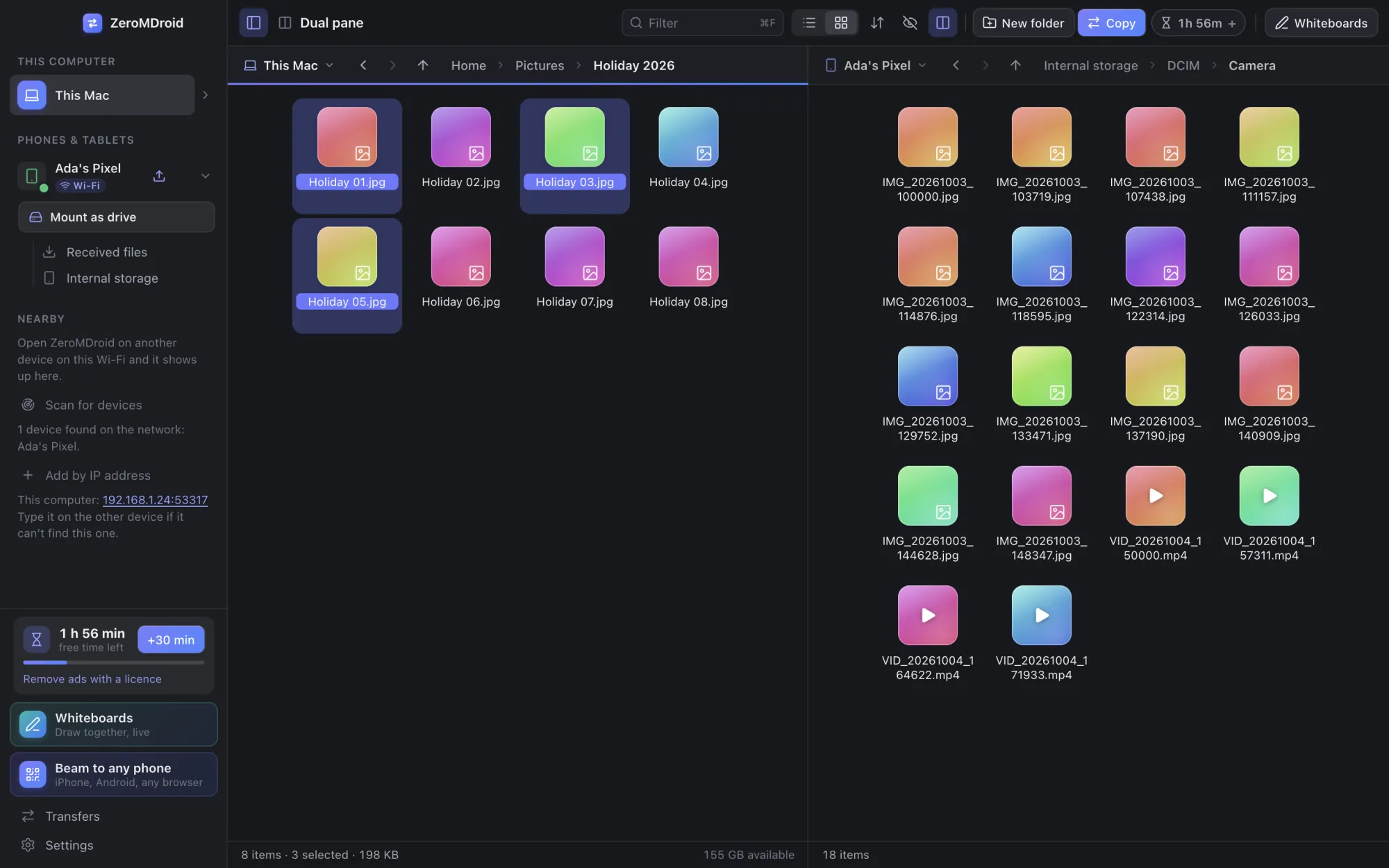
Double-click opens a file with the app on your computer that handles it (files on another device are fetched first). Right-click for Open with…, Reveal in Finder (or Explorer), rename, delete and more.
5. USB cable (Android)
No app is needed on the phone for this.
- On the phone: Settings › About phone, tap Build number seven times, then Settings › System › Developer options › USB debugging on.
- Plug the phone into the computer and unlock it. Tap Allow on the phone’s question (tick Always allow from this computer).
- In ZeroMDroid click Set up Android bridge once. The phone appears under Phones & tablets.
6. Phone as a drive (Mac)
With an Android phone connected by USB, click Mount as drive under the phone. It appears in Finder like a USB stick. Eject it from Finder, or press the same button again, when you are done.
7. Beam to any phone
For a phone that does not have ZeroMDroid (an iPhone, a friend’s phone, anything with a browser):
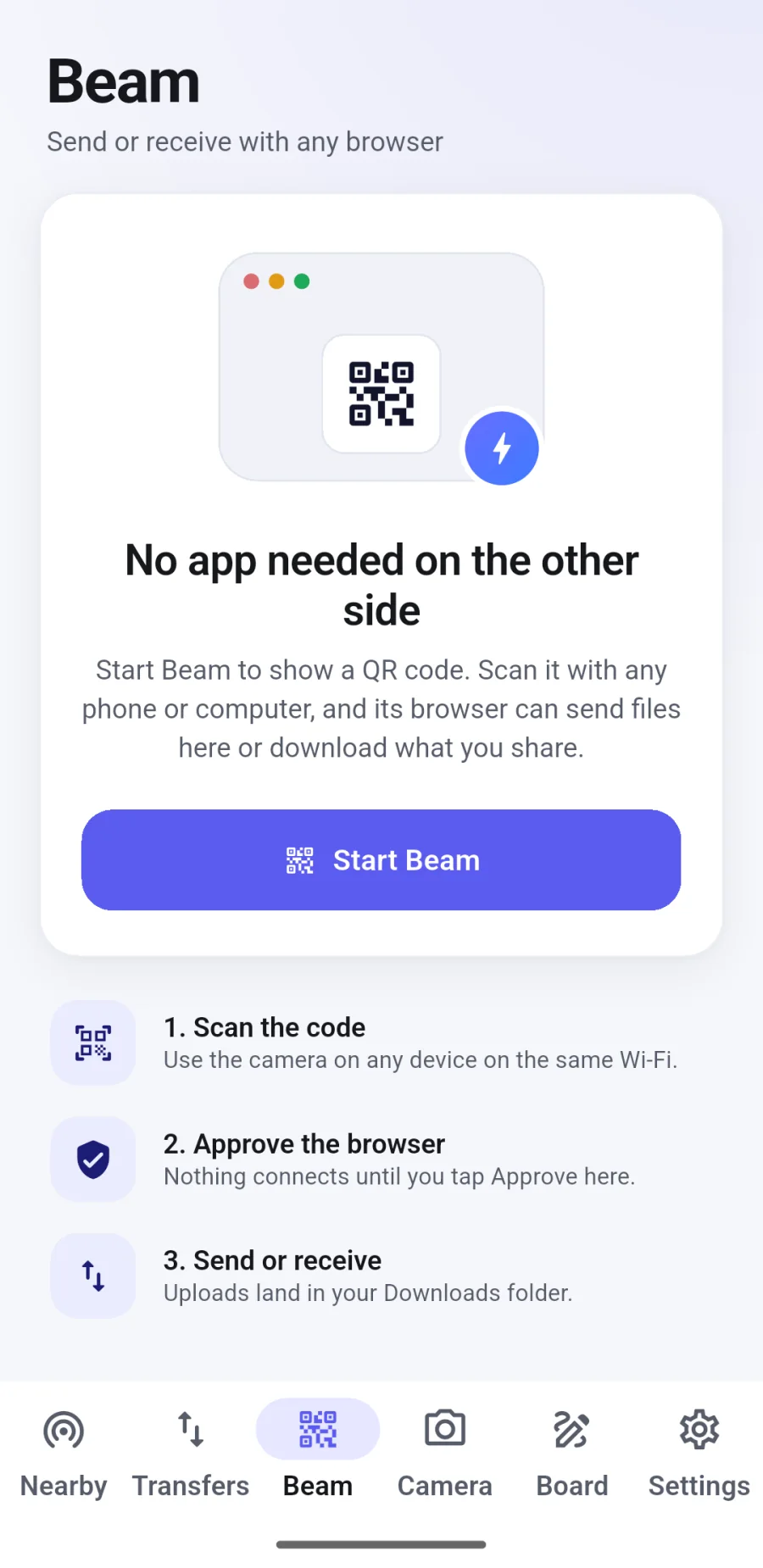
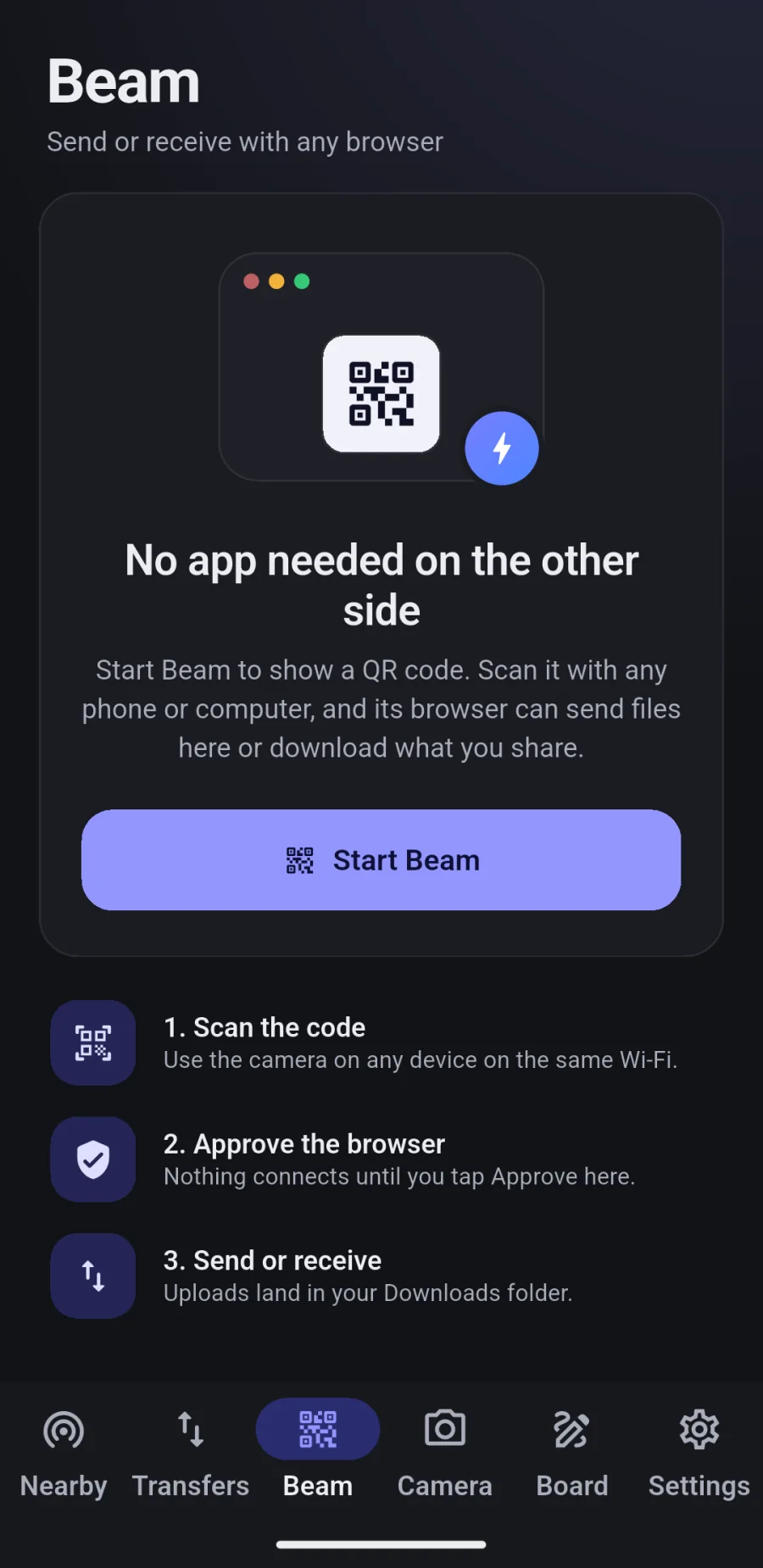
- Click Beam to any phone in the sidebar. A QR code appears. (On a phone: the Beam tab.)
- Scan it with the other phone’s camera and open the link.
- Approve the browser on your screen. Now it can send you files and download the ones you shared, and you can share text.
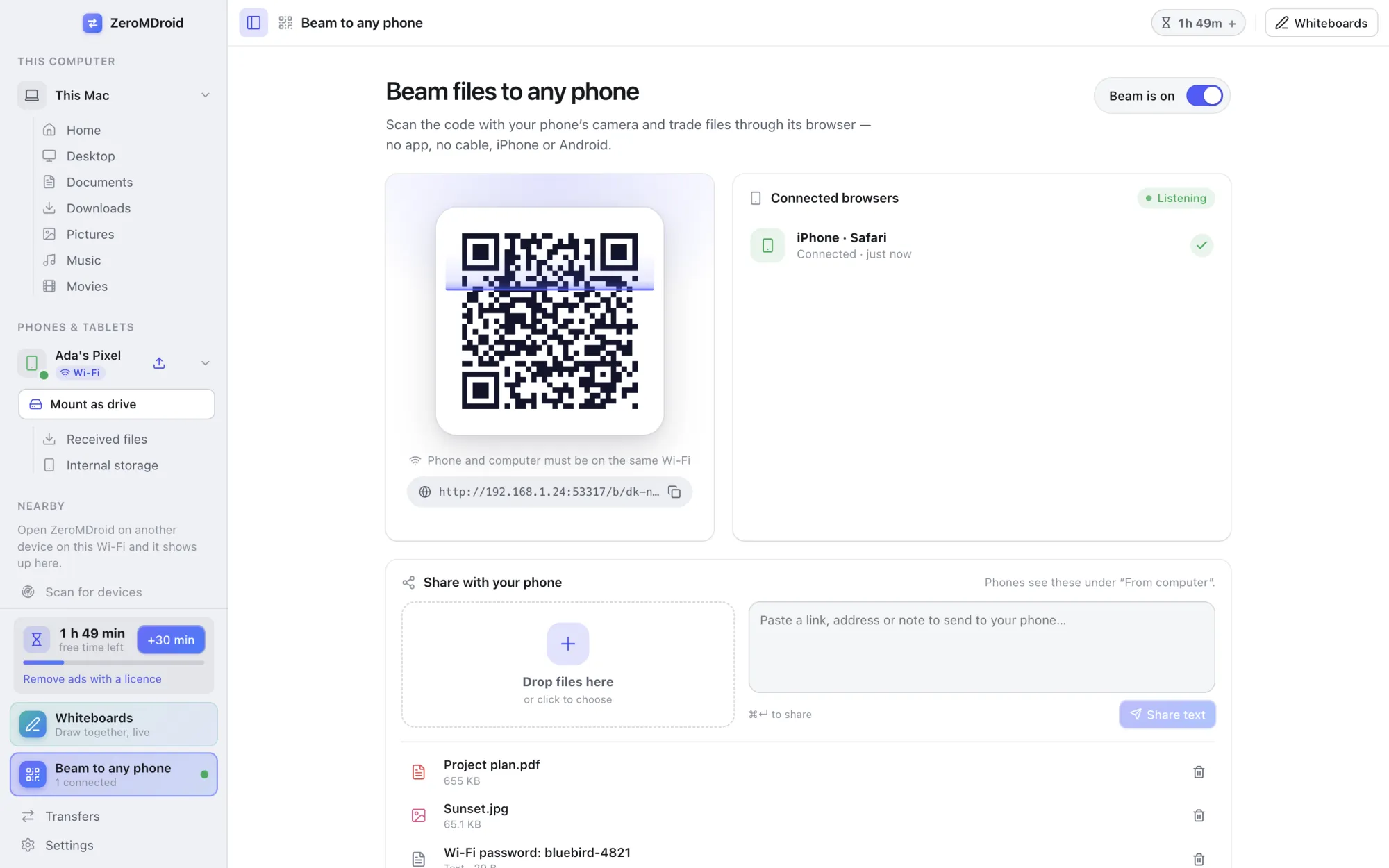
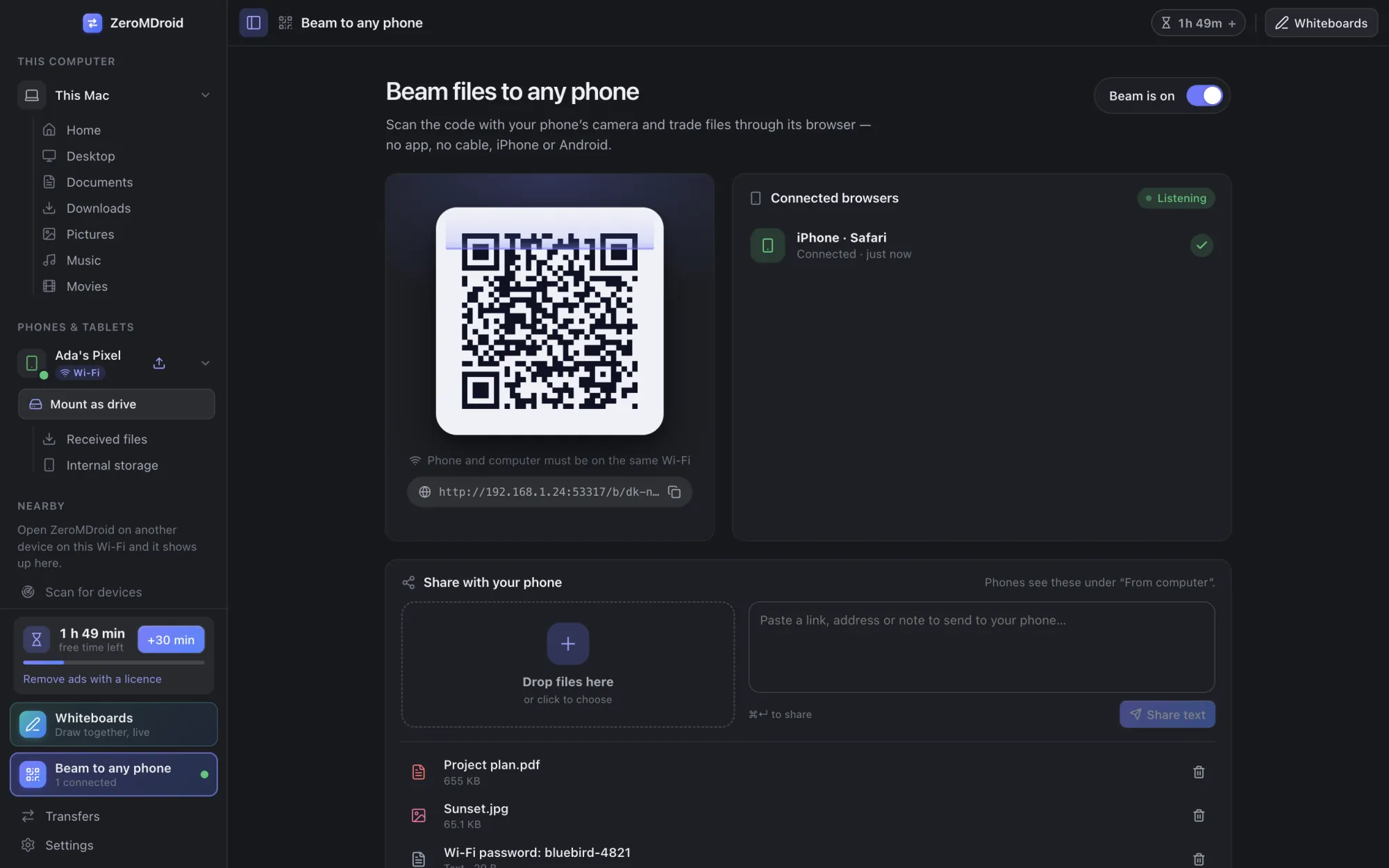
Beam runs on your own Wi-Fi with a secret link, and every browser needs your approval. It is plain HTTP, so use it on networks you trust.
8. Whiteboards
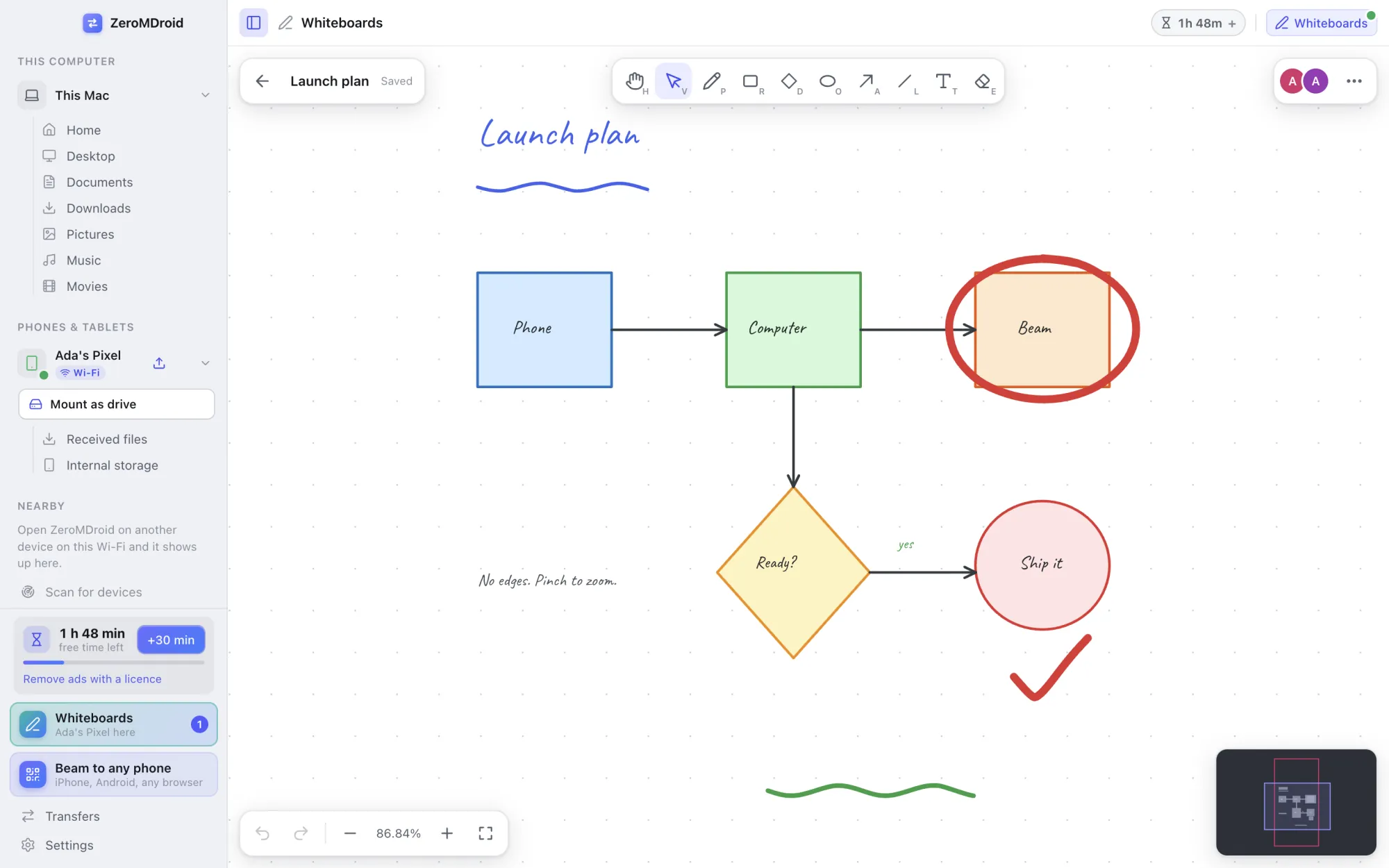
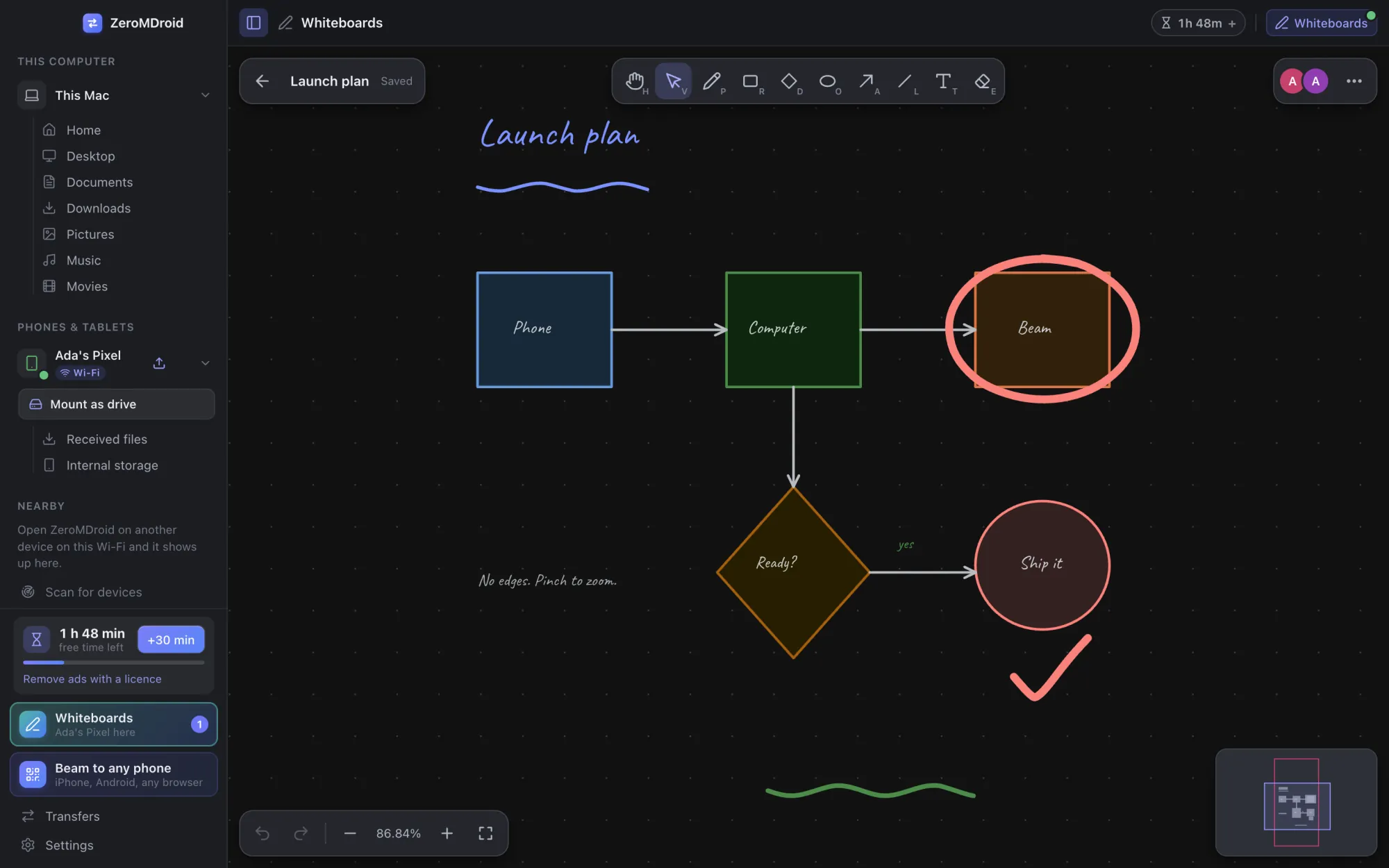
Click Whiteboards (sidebar, top bar, or ⌘⇧B / Ctrl+Shift+B; on the phone the Board tab). Make a new whiteboard, name it, and open it on any paired device: you see each other’s pen live. One finger draws on a phone, two fingers pan and zoom. Click a face at the top to Follow that person’s view. The menu exports the board as a picture.
9. Camera
On the phone, open the Camera tab and choose which paired computer should receive the shots. Take photos or videos; each one is sent to the computer and removed from the phone once it has arrived. Night mode and night vision combine several frames for dark scenes.
10. Pendrives and disks
Plug a pendrive, SD card or external disk into your computer: it appears under This computer in the sidebar after a moment, and goes away when you take it out.
- Mac: the first time ZeroMDroid opens a drive, macOS asks whether to allow it. Choose Allow. If you chose “Don’t Allow” before, ZeroMDroid tells you which drive is blocked and opens the right page: System Settings › Privacy & Security › Files & Folders, then switch on ZeroMDroid for Removable Volumes.
- Drives macOS can only read (formatted NTFS) can be copied from but not written to. Format them as exFAT to write on both Mac and Windows.
- Linux: drives mounted by your desktop (under
/mediaor/run/media) are listed.
11. The phone app
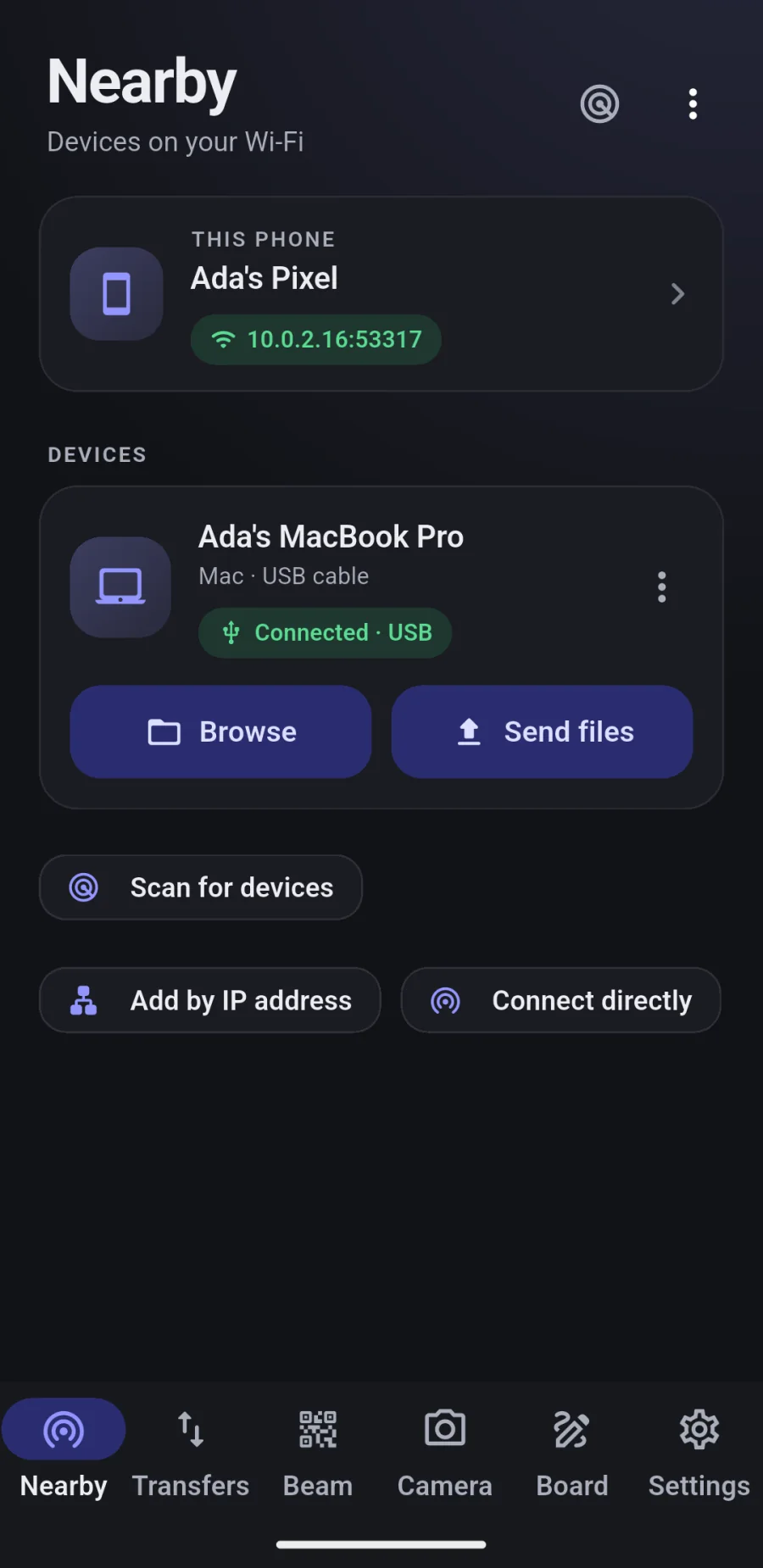
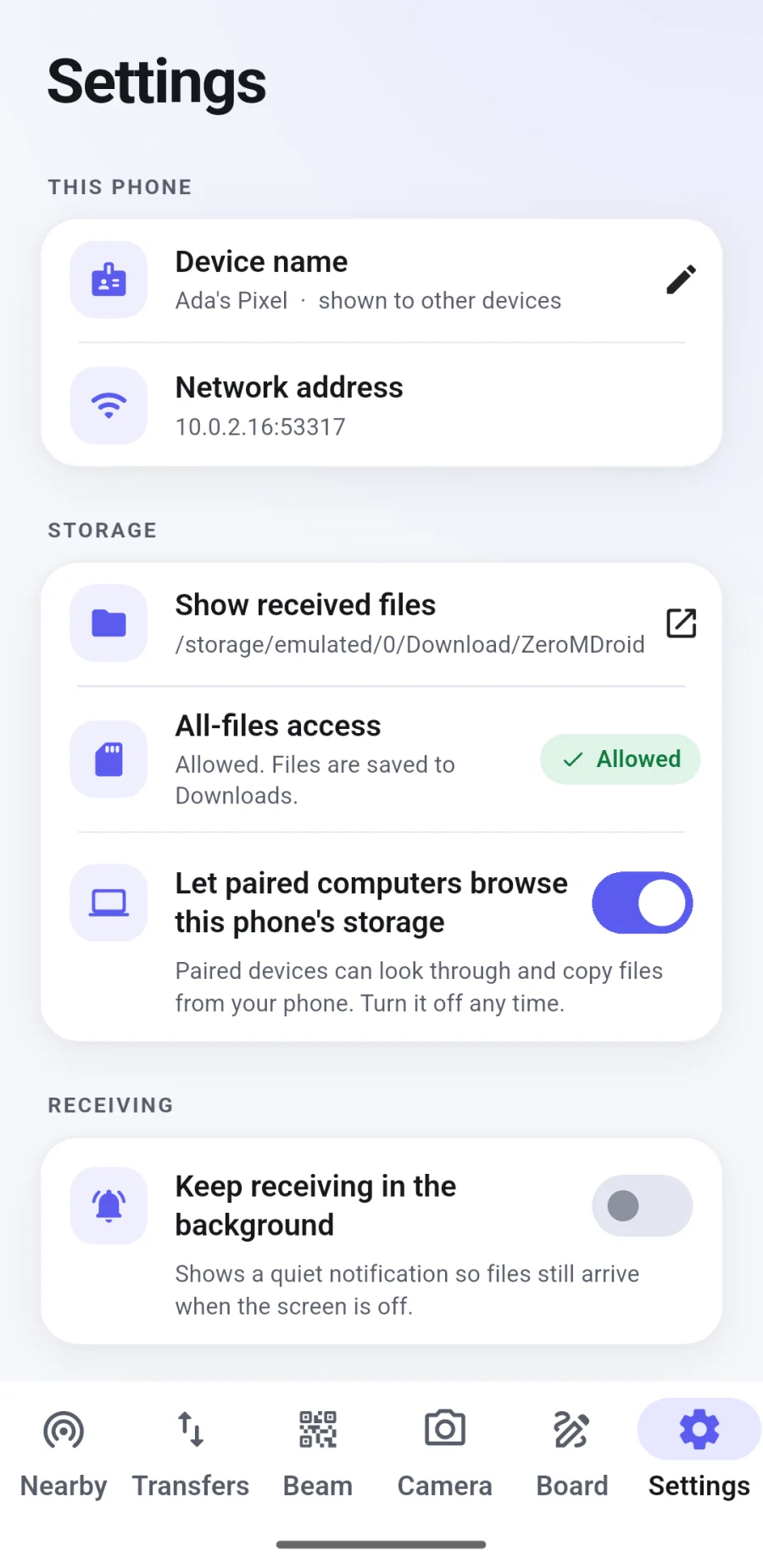
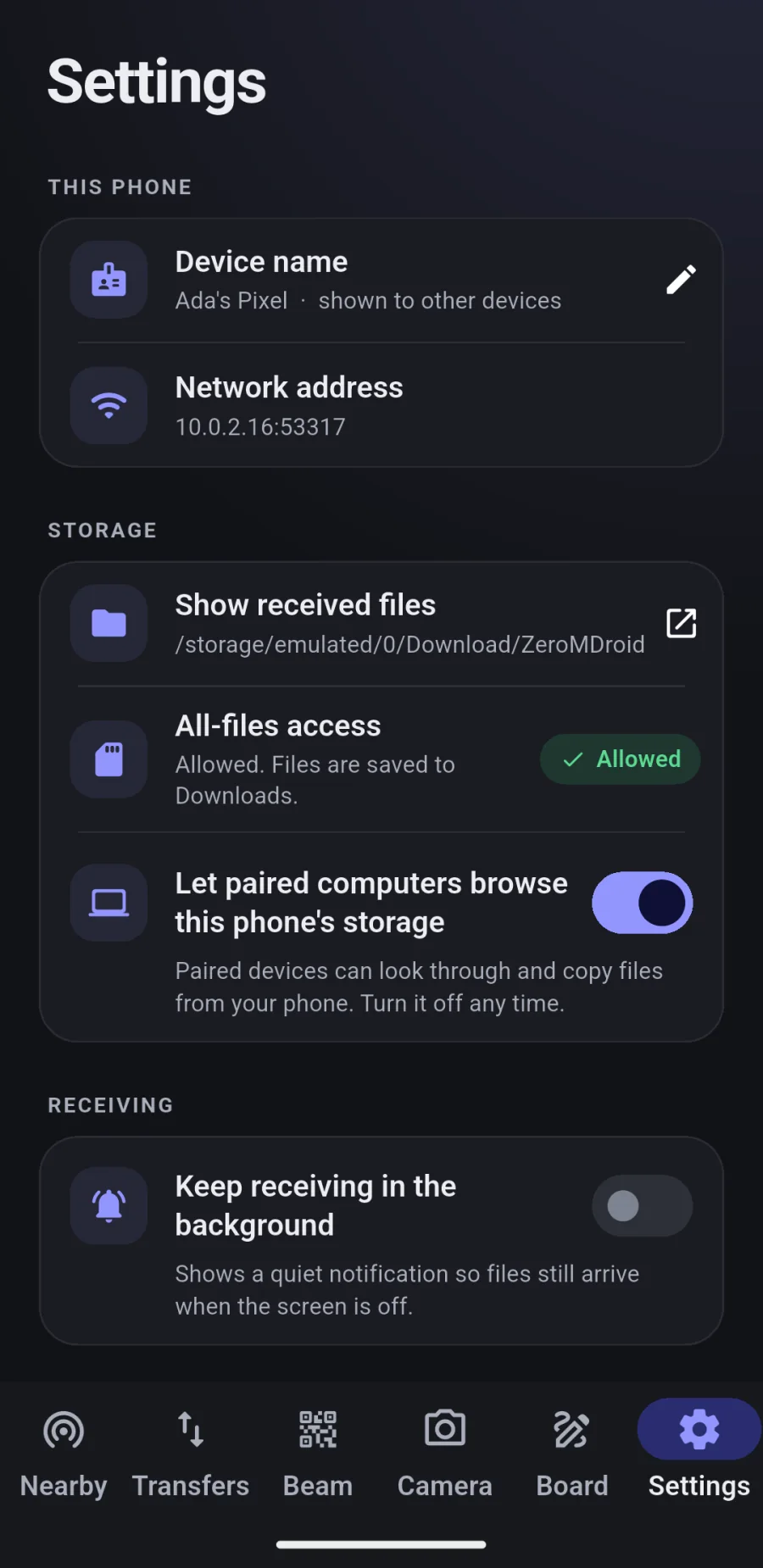
The phone app has six tabs: Nearby (devices around you, pairing), Transfers, Beam, Camera, Board and Settings. To let a paired computer browse your phone’s storage, switch on Settings › Let paired computers browse this phone; Android asks for “All files access” once. Receiving keeps working with the screen off.
12. Free time, ads and Pro
The chip at the top shows your free time. It counts down only while you use ZeroMDroid (a transfer running, a device being browsed, Beam, the whiteboards or the camera). When it runs low, tap it to watch a short ad for more. After an ad you can watch the next one straight away, or press Done. If an ad cannot be shown, you are given the time anyway.
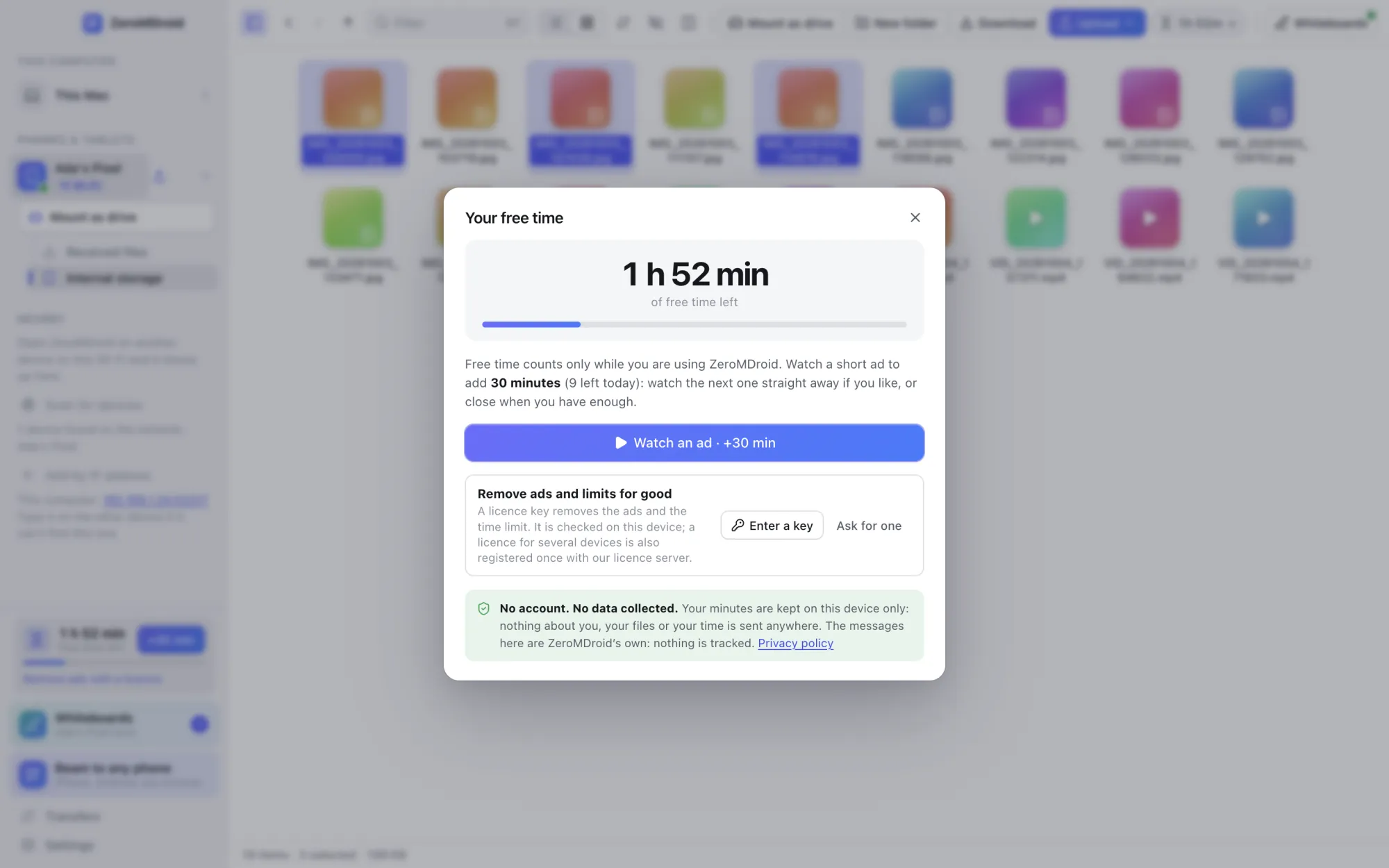
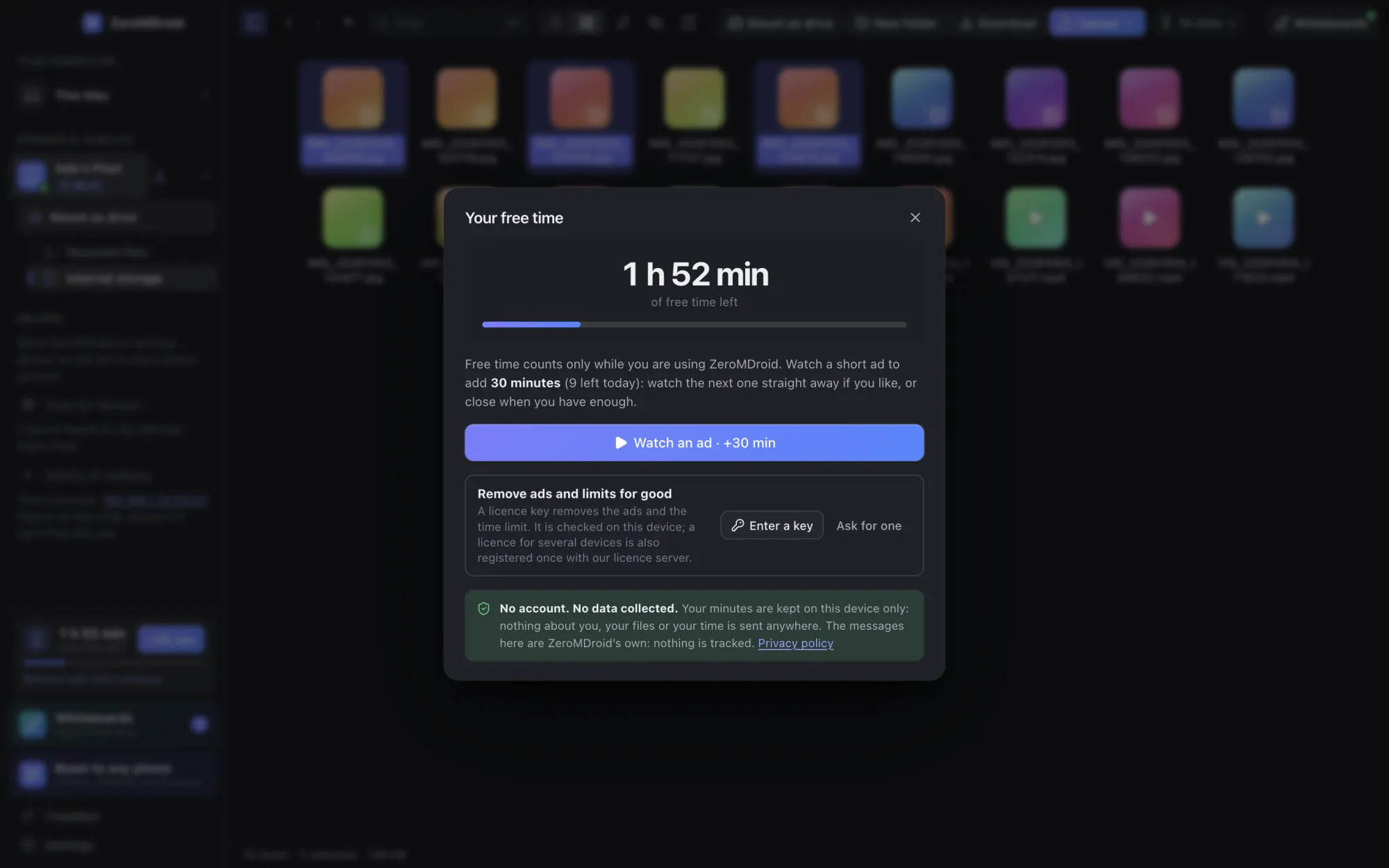
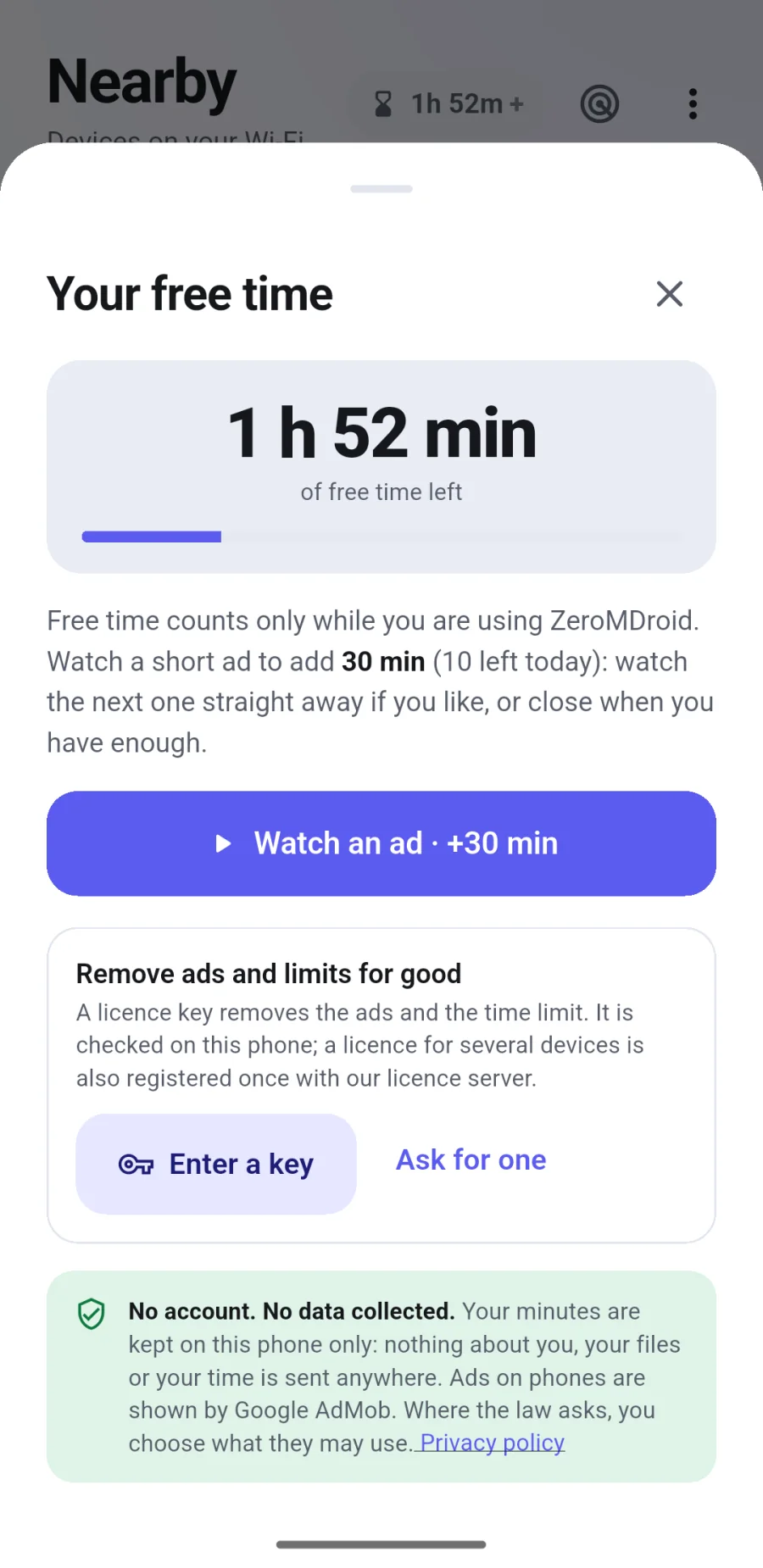
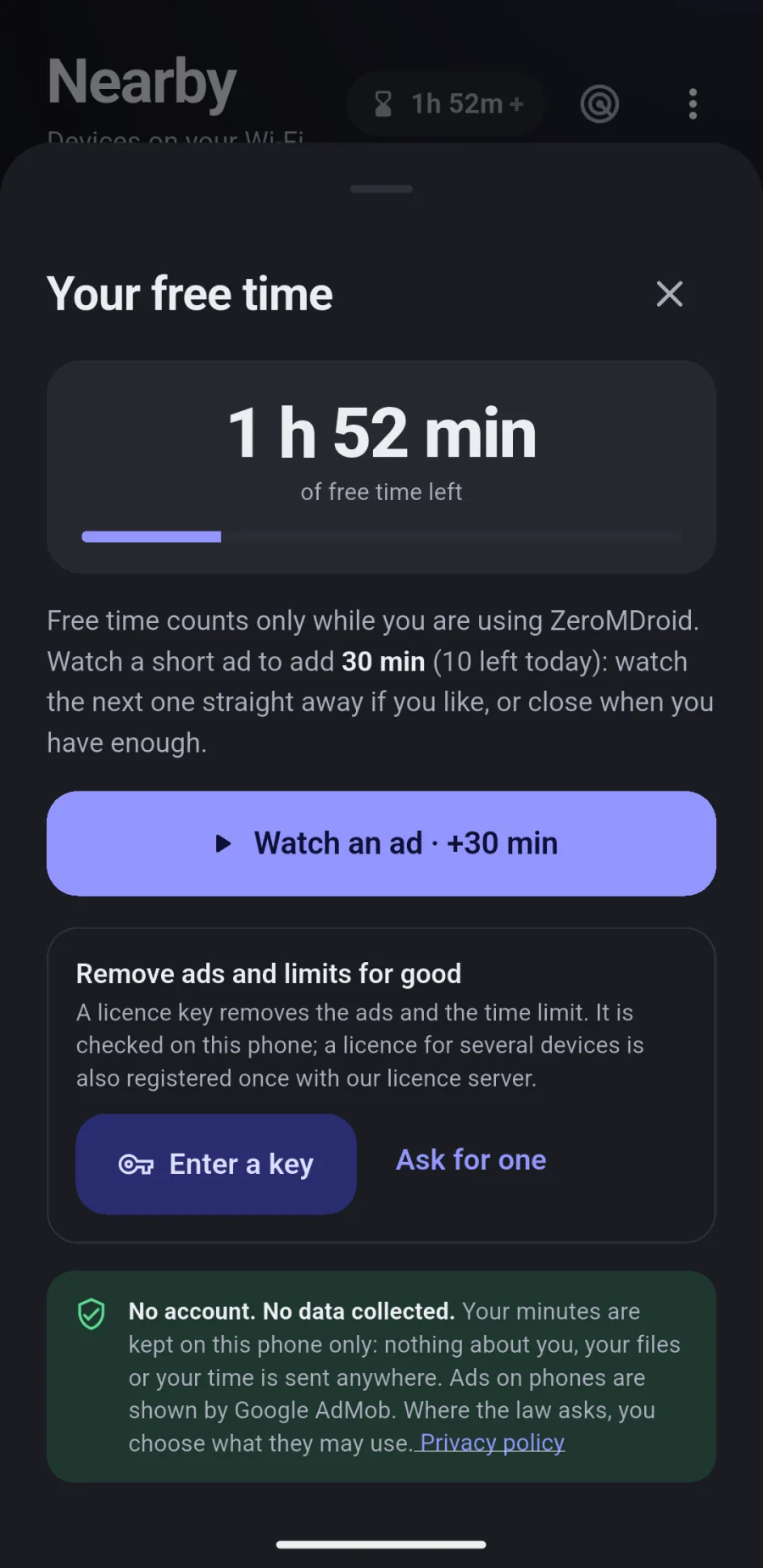
A Pro licence removes the ads and the time limit. To use a key: Settings › Plan & ads › Enter a licence key (or click the time chip), paste the key you were sent, press Activate. To move it to a new device, enter it there and choose Use here instead for the device you no longer use.
13. When something does not work
I cannot see my other device under Nearby
- Both devices must be on the same Wi-Fi, not a guest network. Some routers have “client isolation”: turn it off.
- Open ZeroMDroid on both. A phone that is asleep may need to be woken.
- Mac: allow Local Network for ZeroMDroid (System Settings › Privacy & Security › Local Network). Until you do, macOS blocks every connection.
- Windows: allow ZeroMDroid through the firewall when Windows asks (private networks).
- Use Scan for nearby devices, or add the other device by its address. Or use a USB cable or Beam instead.
My Desktop, Documents or Downloads are empty or locked (Mac)
macOS keeps those folders private until you allow it. ZeroMDroid shows a window with an Allow access button; in System Settings › Privacy & Security › Files & Folders switch on ZeroMDroid for the folders listed.
The phone does not show its storage to my computer
On Android 11 or later switch on Settings › Let paired computers browse this phone and allow All files access when Android asks.
The USB phone shows “unauthorized”
Unlock the phone and tap Allow on the USB debugging question (tick Always allow). If it never appears, unplug, switch USB debugging off and on, and plug in again.
A pendrive is listed but empty or will not open (Mac)
macOS may be blocking ZeroMDroid from removable drives. ZeroMDroid shows which drive and where to allow it: System Settings › Privacy & Security › Files & Folders › ZeroMDroid › Removable Volumes.
I ran out of free time
Watch an ad for more, or take the few free minutes that are offered when no ad can be shown. A Pro licence removes the limit.
Still stuck? Write to admin@fabrixly.com and say what you see and on which devices.